THE WP SMART WORK JOURNAL
WordPress Critical Error After an Update? What to Do
A calm recovery checklist for a critical error: protect backups, identify the failing component and avoid losing recent orders.

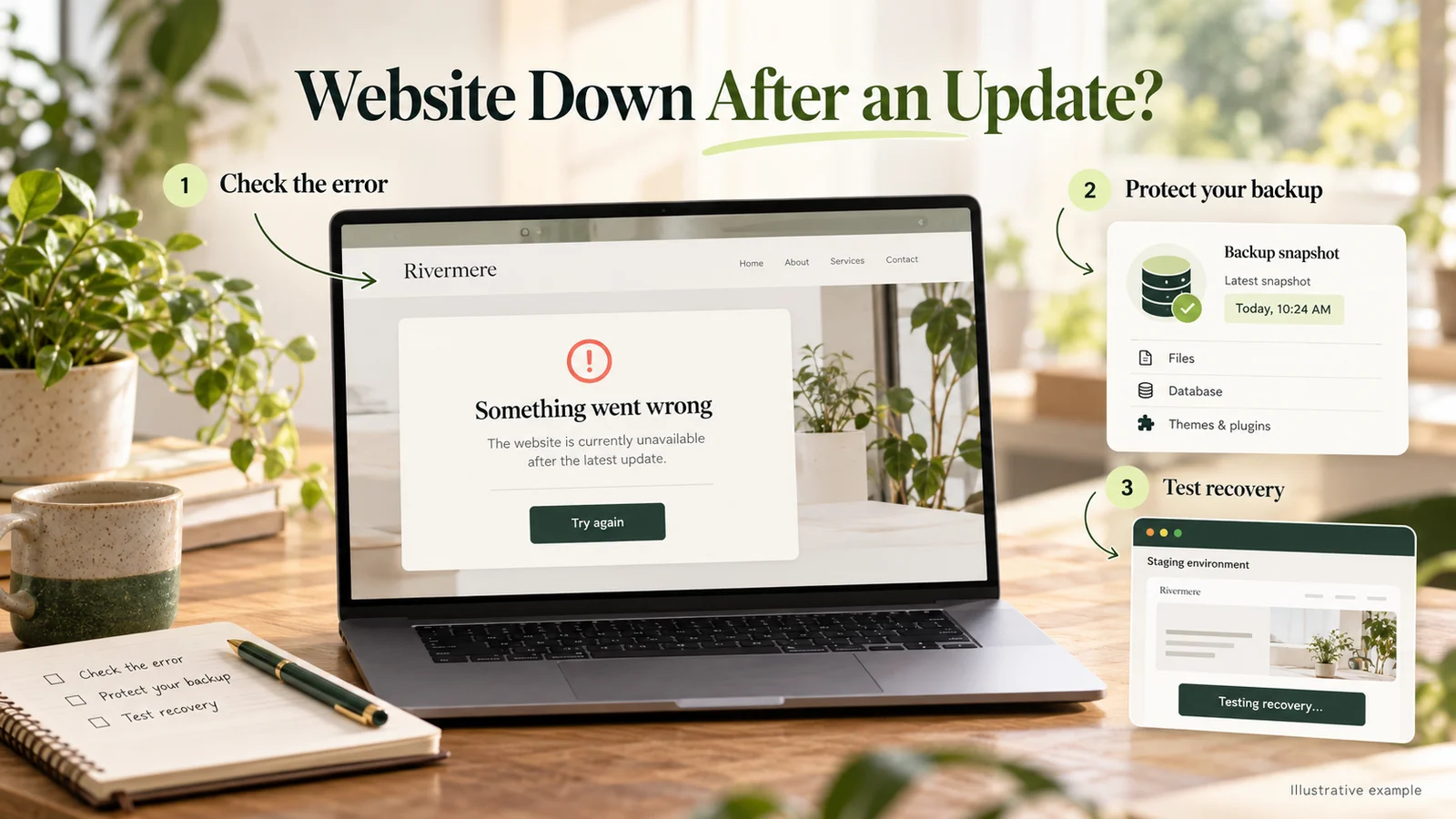
Short answer: a critical error after an update needs recovery and evidence, not a second round of blind changes. Preserve a backup and error details, check any recovery email, and identify which component failed before trying to update again.
Start with what changed
Write down which plugins, theme or PHP version changed and when. Distinguish a broken public page from a dashboard failure. Keep the original error text for your developer, but do not publish logs that reveal server paths, customer details or credentials. If the site handles orders, record the time of your latest database backup before any restore.
Use the recovery route carefully
WordPress may send the administrator a recovery email identifying a failing component. Confirm that it is a genuine message and use the intended recovery process. Recovery links are sensitive; do not put them in a public support thread. The official common-errors handbook describes critical-error and conflict troubleshooting.
Find the incompatible component
An update being the last action does not prove the update itself is defective. An older extension may be incompatible with a new dependency. Reproduce the error on staging where possible. Ask a developer to correlate the failure timestamp with the PHP error log and isolate the relevant plugin or theme. Change one component at a time so the result remains interpretable.
Restore without losing new orders
A file rollback and a full database restore are not interchangeable. Restoring yesterday's database may remove today's orders, enquiries or content. Decide what must be recovered and what changed since the backup. A backup is useful only when you know how to restore it and can verify the recovered customer journey.
Test more than the homepage
After recovery, test the dashboard, a representative service page, contact forms, login and any purchase flow. Clear only the relevant caches and record the version that works. Keep a short incident note explaining the cause, recovery step and follow-up; otherwise the next automatic update may repeat the incident.
Should I disable updates permanently?
No blanket rule is appropriate. A controlled update process includes backups, compatibility checks and verification; leaving everything old introduces other risks. If your site needs a repeatable care process, explore website maintenance or ask for a recovery review. If the website works but remains slow, start with the separate speed diagnosis guide.